



Why Your TV Setup Gets Stuck at the Welcome Screen and How to Fix It
Setting up a new smart TV should be simple. You turn it on, follow a few on-screen instructions, connect to Wi-Fi, and start watching your favorite content. But sometimes things don’t go as planned. Many users report that their TV setup gets stuck on the welcome screen, preventing them from continuing.
This problem can happen on many TV brands and is usually caused by software glitches, internet issues, remote pairing problems, or incomplete system updates. The good news is that most welcome screen issues can be fixed without professional repair.
In this guide, you’ll learn why this happens, how to troubleshoot it step by step, and what you can do to prevent the problem in the future.
What Does It Mean When a TV Gets Stuck on the Welcome Screen?
The welcome screen is the first screen displayed when a TV is turned on for the first time or after a factory reset. It starts the setup wizard that helps you:
Select your language
Connect to Wi-Fi
Pair the remote
Sign in to your account
Install software updates
Complete initial settings
If the TV freezes on this screen or doesn’t move to the next step, the setup process cannot continue.
Fortunately, this issue is often software-related rather than hardware-related.
Common Reasons Your TV Gets Stuck During Setup

Understanding the cause makes troubleshooting much easier.
Poor Internet Connection
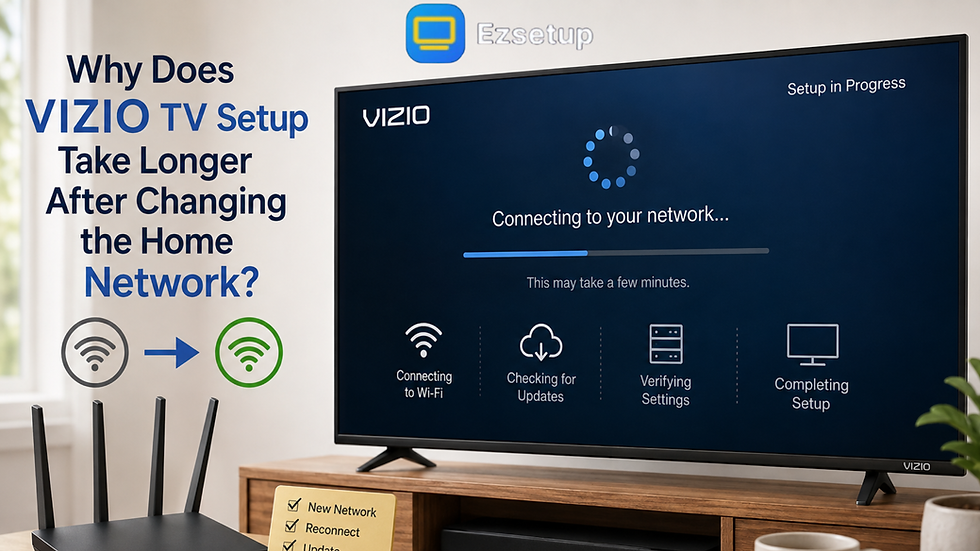
Many smart TVs require an internet connection before completing setup. If the Wi-Fi signal is weak or unstable, the TV may freeze while trying to verify updates or activate built-in services.
Signs include:
The loading animation never finishes
Setup stops after entering the Wi-Fi password
Network error appears repeatedly
Software Glitches
Like smartphones and computers, TVs occasionally experience temporary software bugs.
A minor system error can prevent the welcome screen from loading correctly, especially after a recent firmware update.
Remote Control Pairing Problems
Some smart TVs require Bluetooth remote pairing during the setup process.
If the remote isn’t paired properly:
Buttons may stop responding
Cursor won’t move
Setup cannot continue
Interrupted Software Update
If power is lost during an update or the installation fails, the operating system may not load correctly.
This commonly results in:
Frozen welcome screen
Endless loading circle
Reboot loop
Corrupted Temporary Data
Sometimes, temporary files stored during installation become corrupted.
Although uncommon, clearing these temporary settings through a restart or factory reset often resolves the issue.
Step-by-Step Fixes to Try
Before assuming there’s a hardware problem, work through these solutions one by one.
1. Restart the TV
The simplest fix is often the most effective.
Turn off the TV completely.
Then:
Unplug the power cable.
Wait at least 60 seconds.
Hold the TV’s power button (if available) for 15–20 seconds.
Plug it back in.
Turn the TV on again.
This clears temporary memory and restarts the operating system.
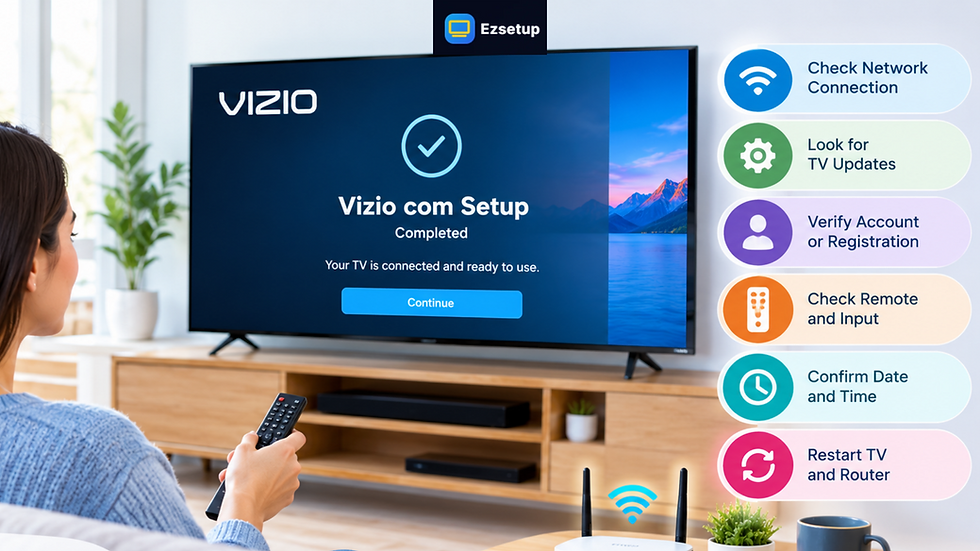
2. Check Your Internet Connection
An unstable connection frequently causes the setup to freeze.
Try these steps:
Restart your Wi-Fi router.
Move the TV closer to the router.
Use the 2.4 GHz network if 5 GHz has weak coverage.
Remove unnecessary devices from the network.
If possible, connect the TV using an Ethernet cable during setup.
A wired connection is generally more stable.
3. Verify the Remote Is Working
If the setup screen doesn’t respond, the problem may be the remote rather than the TV.
Check the following:
Replace the batteries.
Remove battery corrosion if present.
Re-pair the Bluetooth remote.
Point the remote directly toward the TV.
Many TVs also have physical buttons underneath or behind the screen that allow you to continue the setup.
4. Disconnect External Devices
Sometimes connected accessories interfere with startup.
Disconnect:
Streaming sticks
Gaming consoles
USB drives
External hard drives
HDMI devices
Restart the TV with only the power cable connected.
Reconnect accessories after setup is complete.
5. Try Another Wi-Fi Network
If your home internet is causing problems, use another connection temporarily.
Examples include:
Mobile hotspot
Guest Wi-Fi
Another router
If the setup completes successfully, the original network may require troubleshooting.
6. Perform a Factory Reset
If nothing else works, restoring factory settings often resolves welcome screen problems.
Most TVs allow a reset through:
Physical reset button
TV button combination
Recovery mode
Remote control sequence
A factory reset removes previous settings and starts the installation from scratch.
Remember that all saved preferences and downloaded apps will be erased.
Brand-Specific Situations
Although the symptoms are similar, different TV brands may experience the issue for different reasons.
For example:
Android TV models may pause while verifying Google services.
Google TV devices may freeze during account login.
Roku TVs sometimes stop while connecting to Wi-Fi.
Fire TV models may stall during Amazon account verification.
WebOS and Tizen TVs may hang if software updates fail.
The troubleshooting process remains largely the same regardless of the manufacturer.
How to Prevent Welcome Screen Problems
Prevention is easier than troubleshooting.
Before beginning your TV setup, follow these recommendations:
Use a reliable internet connection.
Keep the TV connected to stable power.
Avoid unplugging the TV during updates.
Install firmware updates completely.
Use fresh batteries in the remote.
Disconnect unnecessary accessories during installation.
These simple habits reduce the chances of setup interruptions.
Practical Example
Imagine you’ve just purchased a new smart TV.
You power it on and choose your language.
The TV connects to Wi-Fi but remains stuck on “Please Wait.”
Instead of repeatedly restarting the television, you:
Restart your router.
Connect using an Ethernet cable.
Restart the TV.
Continue setup successfully.
In many real-world situations, internet stability—not the television itself—is the underlying issue.
When the Problem Might Be Hardware Related
Most welcome screen problems are software-related.
However, professional service may be necessary if:
The TV constantly restarts.
The display shows colored lines.
Physical buttons don’t respond.
The TV shuts off unexpectedly.
Factory reset fails repeatedly.
Internal storage reports errors.
If the television is under warranty, contact the manufacturer before attempting advanced repairs.
Helpful Tips During Initial TV Installation
To make your first installation smoother:
Before Turning On
Place the TV where Wi-Fi reception is strong.
Install fresh remote batteries.
Connect only essential cables.
Have your Wi-Fi password ready.
During Setup
Wait patiently while updates install.
Avoid pressing multiple buttons repeatedly.
Do not disconnect power.
Follow every on-screen instruction.
After Setup
Once your TV setup is complete:
Install only the apps you actually use.
Check for the latest software update.
Enable automatic updates.
Test Wi-Fi and streaming performance.
These small steps help keep your TV running smoothly over time.
Why Reliable Setup Guidance Matters
Many users assume that a frozen welcome screen means the TV is defective. In reality, the cause is often something much simpler, such as a weak internet connection or a temporary software issue.
Reliable resources like EzSetup provide clear, step-by-step guidance to help users understand common setup problems and practical troubleshooting methods. Following trusted instructions can save both time and frustration before considering repairs or replacements.
Conclusion
A TV that gets stuck on the welcome screen can be frustrating, especially when you’re excited to use your new device. Fortunately, most cases are caused by temporary software glitches, internet connectivity problems, or setup interruptions rather than serious hardware failures.
Start with simple solutions such as restarting the TV, checking your internet connection, verifying the remote, disconnecting external devices, and performing a factory reset if necessary. These methods solve the majority of setup issues without requiring technical expertise.
If you’re looking for more easy-to-follow setup and troubleshooting guides, EzSetup offers practical information that helps users complete every TV setup with greater confidence and fewer interruptions.
FAQs
1. Why is my TV stuck on the welcome screen?
This usually happens because of a software glitch, poor internet connection, interrupted update, or remote pairing issue. Restarting the TV and checking your network often resolves the problem.
2. Can I complete TV setup without Wi-Fi?
Some televisions allow basic setup without internet access, but many smart features, software updates, and app installations require a stable internet connection before setup is complete.
3. Will a factory reset fix a frozen welcome screen?
Yes. If basic troubleshooting doesn’t work, a factory reset often removes corrupted settings and allows the TV to restart the installation process from the beginning.
4. Is the welcome screen issue caused by faulty hardware?
Not usually. Most welcome screen problems are software-related. Hardware faults are more likely if the TV won’t power on, repeatedly restarts, or shows display abnormalities.
5. How can I avoid setup problems on a new TV?
Use a stable internet connection, keep the TV plugged into reliable power, avoid interrupting software updates, and complete every step of the TV setup process carefully without disconnecting the device.

Comments