



Why Does Vizio TV Setup Take Longer After Changing the Home Network?
Changing your home Wi-Fi network can make a smart TV setup take longer than expected. This often happens when you replace your router, change the Wi-Fi name or password, switch internet providers, or move the TV to another network.
During Vizio TV setup, the television may need to establish a new connection, check for updates, verify network settings, and reconnect services. If any part of this process is delayed, the setup screen may appear to freeze or continue loading.
The good news is that a longer setup process does not always mean something is wrong with the TV. Several network-related issues can cause the delay.
What Changes When You Switch to a New Home Network?
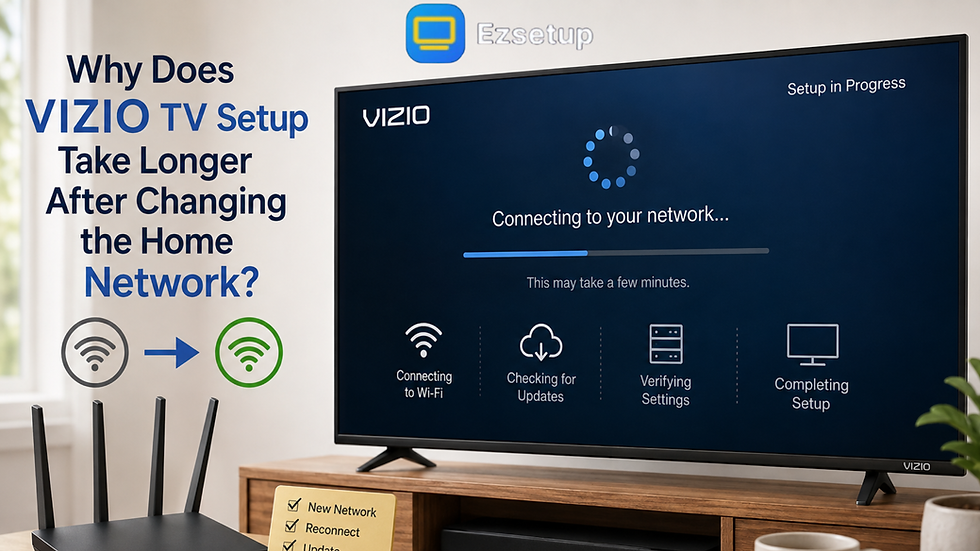
Your TV remembers information about the previous network. When you change your router or Wi-Fi details, those saved settings may no longer match the current network.
For example, your previous Wi-Fi might have had one network name and password, while the new router uses different credentials. The TV must connect to the new network before it can continue online setup tasks.
A new network can also have different security settings, signal strength, DNS behavior, or internet speeds. These differences may affect how quickly the TV communicates with online services.
This is why Vizio TV setup may take longer immediately after a network change.
Why Does TV Setup Take Longer After Changing Wi-Fi?
Several factors can contribute to a slower setup process.
1. The TV Is Connecting to the New Network
The first step is establishing a connection with the new router. If the Wi-Fi signal is weak or the password was entered incorrectly, the TV may repeatedly attempt to connect.
Check that the TV is connected to the correct Wi-Fi network. If your router broadcasts multiple networks, make sure you select the intended one.
2. The Internet Connection Is Slow
A TV can connect successfully to Wi-Fi while still having a slow or unstable internet connection.
Setup may require communication with online services, downloading configuration information, or checking for software updates. If your internet connection is inconsistent, these processes can take longer.
Try opening another device connected to the same network and check whether websites or streaming services load normally.
3. A Software Update Is Being Checked
After connecting to a new network, your TV may check whether updated software is available. Depending on the connection and update size, this process can take some time.
Avoid turning off the TV repeatedly while an update is actively downloading or installing. Interrupting an update can create additional setup problems.
4. Router Settings May Affect the Connection
Some router settings can interfere with smart TV connectivity. Network security modes, device restrictions, parental controls, guest networks, or unusual DNS configurations can sometimes prevent a TV from communicating properly.
If other devices work normally but the TV continues having trouble, review your router settings or restart the router before continuing the setup.
How Can You Make Vizio TV Setup Faster?
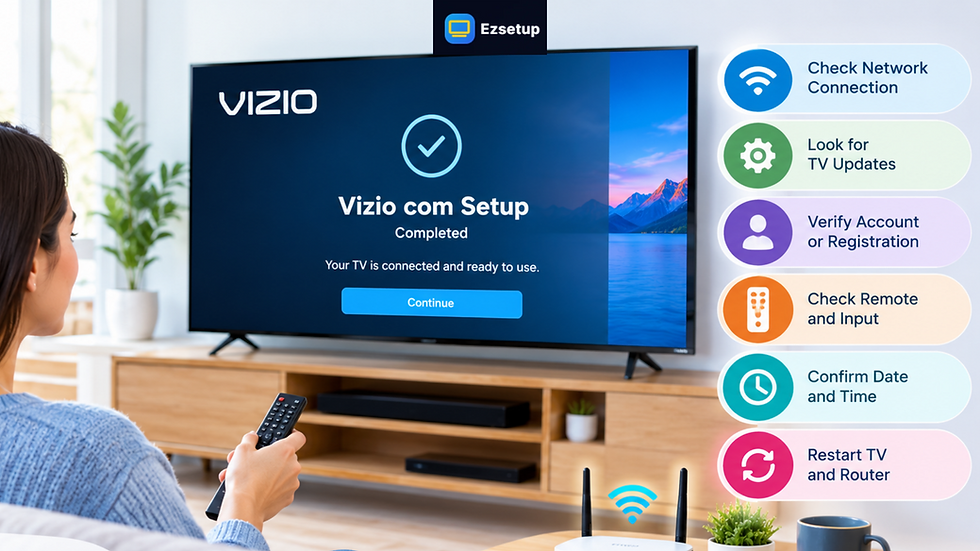
You can try several basic troubleshooting steps before assuming there is a problem with the television.
Restart the TV and Router
Start with a simple restart. Turn off the TV and disconnect it from power for a short period. Restart your router as well and wait until the internet connection is fully restored.
Then turn the TV back on and try connecting again.
This can clear temporary connection problems and allow the TV to establish a fresh network session.
Check the Wi-Fi Signal
If the TV is far from the router, the wireless signal may be weaker than expected.
If possible, temporarily move the router closer to the TV or reduce obstacles between the two devices. You can also test the connection using another device from the same location.
A strong connection can make setup and software downloads more reliable.
Recheck Your Wi-Fi Password
A single incorrect character can prevent the TV from completing the connection.
Carefully enter the current Wi-Fi password. Remember that passwords are case-sensitive, so uppercase and lowercase letters must be entered correctly.
If you recently changed the Wi-Fi password, make sure you are not accidentally using the old one saved elsewhere.
What If the Setup Screen Keeps Loading?
If the TV remains on a loading or setup screen for an unusually long time, first determine whether the issue is the network or the TV.
Test your internet connection on a phone or computer using the same Wi-Fi. If those devices also have problems, focus on the router or internet connection.
If other devices work normally, restart the TV and router and reconnect the television to Wi-Fi.
You can also try connecting the TV to another available network temporarily. If setup works normally on the second network, the original network configuration may be contributing to the problem.
Should You Reset the TV?
A factory reset should generally not be your first troubleshooting step. Resetting removes saved settings and requires you to complete setup again.
Before resetting, verify the Wi-Fi connection, restart your equipment, check the signal strength, and allow enough time for any software update to finish.
If the TV keeps returning to the same setup screen after these steps, review the manufacturer’s troubleshooting guidance.
Final Thoughts
A network change can make Vizio TV setup take longer because the TV has to establish a new Wi-Fi connection and may need to complete additional online checks or software updates. Weak signals, incorrect passwords, router restrictions, and unstable internet can add further delays.
Start with the simplest solutions: restart the TV and router, verify the Wi-Fi credentials, check the signal, and confirm that your internet works properly on other devices. If the problem continues, testing another network can help identify whether the issue is related to your home network or the TV itself.
EzSetup provides independent setup and troubleshooting resources to help users understand common TV setup, connection, activation, and configuration issues.


Comments