



How to Complete TV Setup If the QR Code Won’t Scan
Setting up a new smart TV is usually a quick process. Most modern TVs display a QR code that lets you connect your phone and finish the installation within minutes. However, things don’t always go as planned. Sometimes the QR code refuses to scan, opens the wrong page, or doesn’t respond at all.
The good news is that a failed QR scan doesn’t mean you can’t complete your TV setup. Every major TV brand offers alternative methods that let you continue without using the QR code. In this guide, you’ll learn why QR codes fail, how to fix common issues, and the easiest ways to finish the installation successfully.
Whether you’re setting up a Samsung, LG, Sony, TCL, Hisense, Roku TV, Fire TV, or Vizio TV, these troubleshooting tips will help you get your television ready to use.
Why Does the TV QR Code Fail to Scan?

A QR code simply contains a web address or setup link. Your phone’s camera reads this information and opens the required page. If something interrupts that process, the scan won’t work.
Some of the most common causes include:
Dirty phone camera lens
Low screen brightness on the TV
The phone camera is out of focus
Damaged or frozen QR code
Internet connection issues
Outdated camera or browser app
TV software glitches
Fortunately, most of these problems can be solved in just a few minutes.
Check the Basics Before Trying Again
Before looking for advanced solutions, try these simple checks.
Clean Your Camera Lens
A fingerprint or dust on the camera lens can make it difficult for the phone to recognize the QR code.
Use a soft microfiber cloth to gently clean the lens before scanning again.
Increase the TV Brightness
If the screen brightness is too low, the QR code may appear blurry.
Increase the TV brightness or disable any energy-saving mode that dims the display.
Hold Your Phone at the Right Distance
Many people move their phone too close to the TV.
Instead:
Hold the phone about 8 to 12 inches away.
Keep your hand steady.
Wait a few seconds for the camera to focus automatically.
Improve Room Lighting
Too much glare or very dim lighting can interfere with QR scanning.
Try scanning in a well-lit room without reflections on the TV screen.
Restart Both Devices
Temporary software issues often disappear after a quick restart.
Restart:
Your smart TV
Your smartphone
Once both devices restart, reopen the camera and try scanning again.
This simple step fixes many temporary setup issues.
Make Sure Your Phone Supports QR Code Scanning

Most modern smartphones include built-in QR code scanning.
If your phone cannot recognize the code:
Update your phone software.
Enable QR scanning in camera settings.
Try Google Lens if you’re using Android.
Try the built-in Camera app on iPhone.
If one app doesn’t work, another often will.
Use the Manual Setup Option Instead
Every major TV manufacturer provides an alternative method if the QR code cannot be scanned.
Look carefully at the TV screen.
You may see options such as:
Continue without a phone
Manual setup
Skip QR code
Use remote instead
Select one of these options using your TV remote.
You can then continue the TV setup manually by entering your Wi-Fi password and signing into your accounts directly on the television.
Connect Your TV to Wi-Fi First
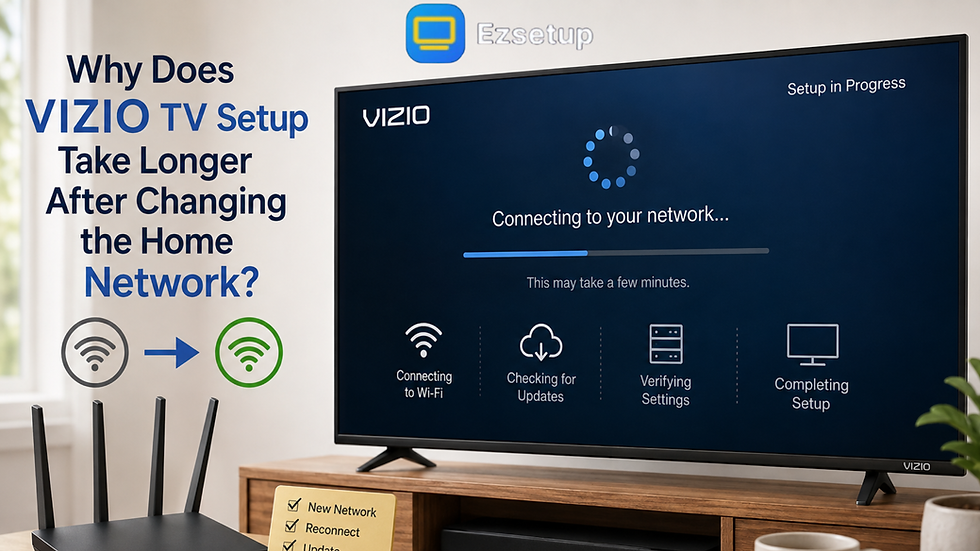
Some TVs generate a QR code before they have an active internet connection.
If your TV isn’t connected properly, the code may fail.
Using the remote:
Open Network Settings.
Select your Wi-Fi network.
Enter the password.
Wait until the TV confirms the connection.
After connecting, the QR code may refresh and begin working normally.
Common Brand-Specific Tips
Although the overall process is similar, different manufacturers may display different setup options.
Samsung TVs
Samsung Smart TVs often allow users to skip the QR code and continue using the remote.
You can also sign in to your Samsung account later.
LG TVs
LG TVs usually provide both QR code setup and manual network configuration.
If scanning fails, continue through the remote-guided installation.
Roku TVs
Roku devices often require account activation.
If the QR code doesn’t work, visit the activation website manually using another browser.
Fire TV
Amazon Fire TV devices allow users to continue by entering account details directly with the remote.
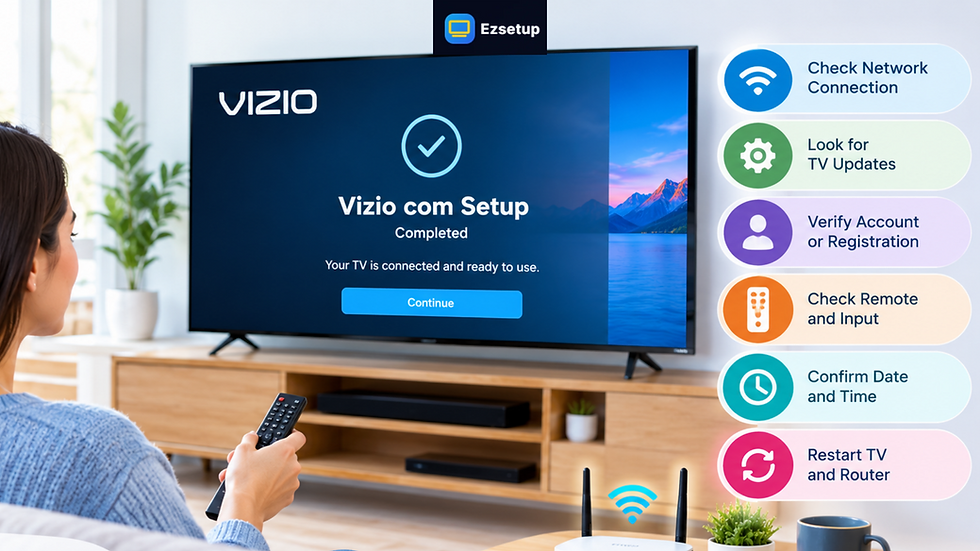
Vizio TVs
Many Vizio models provide an alternative setup path if the QR code cannot be read.
Complete the internet connection first before attempting account sign-in.
Practical Example
Imagine you’ve just purchased a new smart TV.
The welcome screen asks you to scan a QR code.
You try several times, but nothing happens.
Instead of resetting the TV immediately, you:
Restart your phone.
Clean the camera lens.
Increase TV brightness.
Select “Continue with Remote.”
Connect to Wi-Fi.
Finish setup manually.
Within a few minutes, the TV is fully configured without ever scanning the QR code.
This is a common situation and usually has a simple solution.
Tips to Avoid QR Code Problems in the Future
Follow these simple habits whenever setting up a smart TV.
Keep your phone software updated.
Connect to a stable Wi-Fi network.
Clean your camera lens regularly.
Avoid scanning in direct sunlight.
Keep your TV software updated.
Use the original remote whenever possible.
Read on-screen instructions carefully.
These small steps reduce the chances of setup interruptions.
Conclusion
A QR code that won’t scan can be frustrating, but it doesn’t stop you from completing your smart TV installation. In most cases, the issue is caused by a simple camera problem, screen brightness, internet connection, or temporary software glitch. If you’re unsure about a particular step, checking a reliable guide from EzSetup can help you understand the available options without making the process confusing.
Fortunately, every major TV brand includes alternative setup methods that allow you to continue without relying on the QR code. By following the steps in this guide, you can complete your TV setup quickly and enjoy your favorite streaming apps, live channels, and entertainment without unnecessary delays. If one method doesn’t work, another usually will, making the process much smoother than it first appears.
Frequently Asked Questions
1. Why won’t my phone scan my TV QR code?
Your phone may have a dirty camera lens, outdated software, poor lighting, or be too close to the TV. Cleaning the lens and improving lighting usually solves the problem.
2. Can I complete my TV setup without using the QR code?
Yes. Most smart TVs allow manual setup using the remote, where you can connect to Wi-Fi and sign into your accounts directly.
3. Does every smart TV require QR code setup?
No. QR codes are optional on many TVs. They simply make the setup process faster, but manual installation is usually available.
4. Should I factory reset my TV if the QR code doesn’t work?
Only if other troubleshooting methods fail. Restarting the TV, updating software, or using manual setup is recommended before performing a reset.
5. Why does the QR code open the wrong page?
This may happen if the QR code is outdated, partially displayed, or your phone interprets it incorrectly. Try scanning again, use another phone, or manually enter the setup website shown on the TV screen.

Comments