



How to Transfer Your Old TV Settings to a New Vizio TV Setup Without Losing Apps or Preferences
Buying a new Vizio TV is exciting, but setting everything up again can feel like a chore. Many people worry about losing their favorite streaming apps, Wi-Fi settings, picture preferences, or personalized configurations. Fortunately, moving from an old TV to a new one is much easier when you know what can—and cannot—be transferred.
While there isn’t a one-click option to copy every setting from one Vizio TV to another, you can save time by following the right steps. This guide explains how to move your essential preferences, reinstall apps quickly, and recreate your viewing experience without unnecessary frustration.
Whether you’re replacing an older television or upgrading to a newer Smart TV, this guide will help make your TV setup smooth and stress-free.
Why Some TV Settings Can Be Transferred and Others Cannot

Every smart TV stores information in different ways. Some settings are connected to your streaming accounts, while others are saved only on the television itself.
Generally, you can easily restore:
Streaming service sign-ins (after logging in)
Watchlists and viewing history
App preferences linked to your account
Google or Apple account information
However, you usually need to configure manually:
Picture settings
Audio settings
Wi-Fi connection
Accessibility preferences
Device names
Input labels
Understanding this difference helps you prepare before replacing your old TV.
Before You Disconnect Your Old TV
Taking a few minutes to prepare your existing television can save a lot of time later.
Make a List of Installed Apps
Open your app library and note the streaming services you use regularly.
For example:
Netflix
YouTube
Disney+
Hulu
Prime Video
Peacock
Apple TV
Max
Spotify
Most of these apps can simply be installed again on your new television.
Photograph Your Picture Settings
Many people spend months adjusting brightness, contrast, sharpness, and color settings.
Instead of guessing later:
Open Picture Settings.
Take photos using your phone.
Capture every menu.
These photos become your personal backup.
Write Down Audio Preferences
If you use:
Soundbar
Home theater
Bluetooth speakers
Optical audio
HDMI ARC/eARC
Take screenshots or photos of those settings too.
Check Your Wi-Fi Password
Although many homes remember the password, having it ready speeds up the installation process.
Set Up Your New Vizio TV Correctly
Once the new television is out of the box, begin the initial installation carefully.
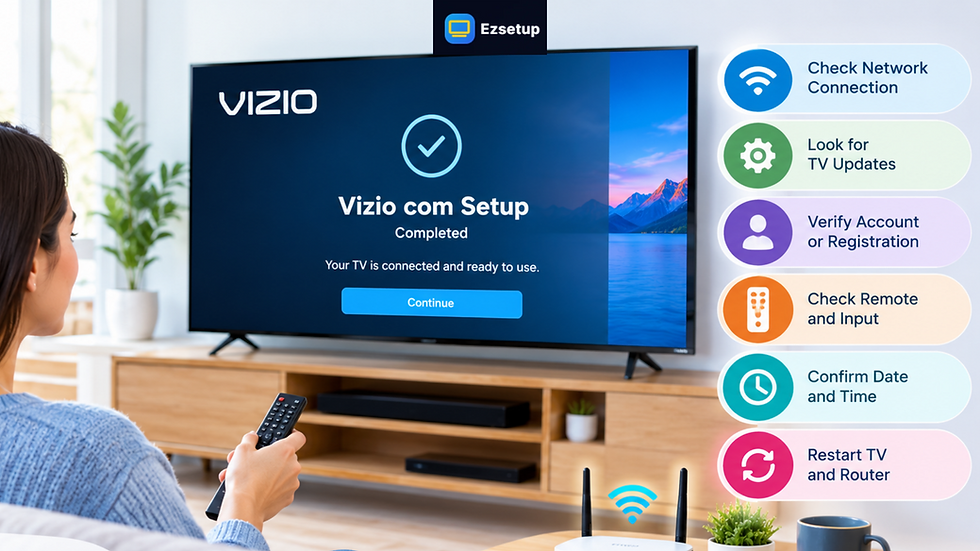
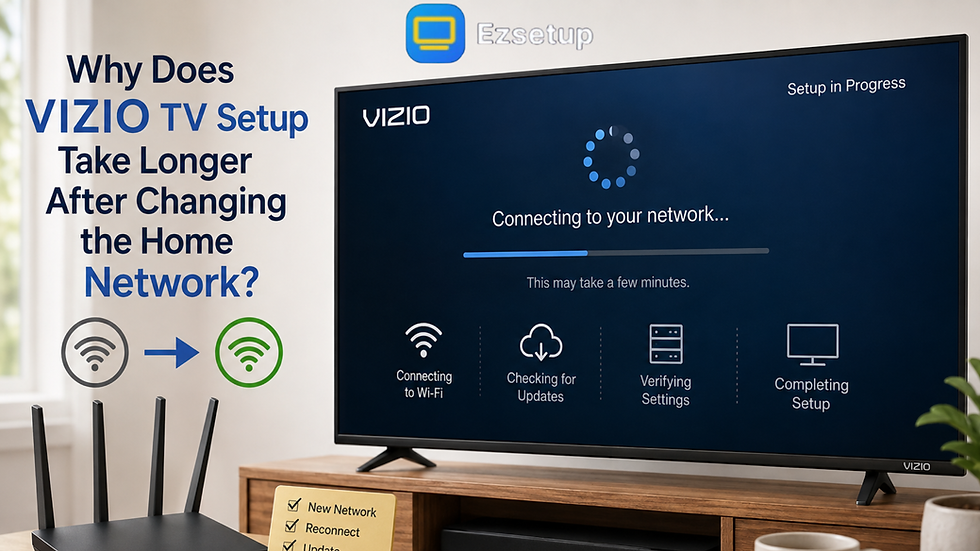
A proper TV setup includes:
Connecting power
Connecting to Wi-Fi
Accepting software updates
Signing into your Vizio account (if required)
Never skip software updates during installation. New firmware often improves app compatibility, security, and overall performance.
Sign Into Your Streaming Accounts
One of the easiest parts of switching TVs is restoring streaming services.
Most streaming platforms store your information online instead of on the television.
Simply install the apps and sign in.
Once logged in, you’ll usually see:
Continue Watching
Saved Favorites
Watchlists
Viewing History
Profiles
Recommendations
This happens automatically because these settings belong to your streaming account rather than the television.
Restore Your Favorite Apps
Many users wonder if apps automatically transfer.
The answer depends on your TV model.
For most Vizio Smart TVs:
Install apps available through the Smart TV platform.
Log in to each service.
Your personalized recommendations usually return automatically.
Apps themselves don’t normally move directly between televisions, but your accounts preserve most of your personal experience.
Copy Your Picture Settings
Picture quality is one of the most noticeable differences after upgrading.
If your old TV looked perfect, recreate those settings manually.
Common options include:
Brightness
Adjust until dark scenes remain detailed without appearing washed out.
Contrast
Higher isn’t always better. Balance highlights with shadow detail.
Color
Avoid oversaturated colors unless you prefer a vivid picture.
Sharpness
Too much sharpness creates artificial edges.
Motion Settings
Choose the motion option that feels natural for sports, movies, or gaming.
Using your previously saved photos makes this process much faster.
Reconnect External Devices
Your entertainment system may include several connected devices.
Examples include:
Gaming consoles
Blu-ray players
Streaming sticks
Cable boxes
Soundbars
AV receivers
Reconnect each device to the correct HDMI input.
Afterward:
Rename HDMI inputs if desired.
Enable HDMI-CEC if supported.
Test audio output.
Pair Bluetooth Accessories Again
Bluetooth connections generally do not transfer.
You’ll need to reconnect:
Wireless headphones
Bluetooth speakers
Keyboards
Controllers
Fortunately, pairing usually takes only a minute.
Reconfigure Accessibility Settings
Many users rely on accessibility features every day.
Remember to restore:
Closed captions
Screen reader
High contrast mode
Audio guidance
Text size
Voice controls
These settings are often stored locally on the TV.
Update Privacy Preferences
A new television starts with default privacy options.
Take a few minutes to review:
Data sharing
Advertising preferences
Voice assistant permissions
App permissions
Location settings
Adjust them according to your comfort level.
Practical Example
Imagine replacing a five-year-old Vizio Smart TV with a newer model.
Before unplugging the old TV, you:
Photograph picture settings.
Write down Wi-Fi details.
List installed apps.
Confirm streaming account passwords.
During installation:
Connect to Wi-Fi.
Update software.
Install your favorite streaming apps.
Sign in to each account.
Restore picture settings using your saved photos.
Within 30–45 minutes, your new television feels almost identical to the old one.
Common Mistakes to Avoid
Many people accidentally make the setup process harder.
Avoid these common mistakes:
Skipping software updates
Forgetting account passwords
Not saving picture settings
Disconnecting devices too early
Ignoring firmware installation
Using incorrect HDMI ports
Leaving privacy settings unchanged
Planning ahead prevents unnecessary troubleshooting later.
When Should You Reset the Old TV?
Once you’ve confirmed your new television is working properly, consider performing a factory reset before selling, donating, or recycling the old one.
A factory reset removes:
Streaming accounts
Saved passwords
Viewing history
Wi-Fi information
Personal settings
This protects your privacy and prepares the television for its next owner.
Frequently Asked Questions
1. Can I transfer all my settings from one Vizio TV to another?
No. While streaming accounts and cloud-based preferences are restored after signing in, picture, sound, Wi-Fi, and many system settings usually need to be configured manually.
2. Will I lose my streaming apps?
No. You can reinstall supported apps on your new television and sign back into your accounts. Your watchlists and profiles are typically stored online.
3. Do I need to enter all my passwords again?
In most cases, yes. Having your streaming and Wi-Fi passwords ready makes the setup process much faster.
4. How long does it take to complete the transfer?
For most households, setting up a new Vizio TV and restoring apps and preferences takes around 30 to 60 minutes, depending on your internet speed and the number of streaming services you use.
5. Should I factory reset my old TV after switching?
Yes. Once you’ve verified that everything is working on your new television, performing a factory reset removes your personal information and protects your privacy before selling, donating, or recycling the device.
Final Thoughts
Upgrading to a new Vizio TV doesn’t have to mean starting from scratch. Although some settings must be entered manually, most streaming services keep your preferences, profiles, and watchlists safely stored in the cloud. By documenting your existing settings, installing your favorite apps, and carefully following each step, you can complete your TV setup quickly and enjoy a familiar viewing experience on your new screen. A little preparation goes a long way toward making the transition smooth, secure, and hassle-free. Whether you’re reconnecting accessories or optimizing your new television, EzSetup offers practical information to simplify the process.

Comments