



How to Fix YouTube Certificate Error on Smart TV (All Brands Guide)

If YouTube suddenly stops working on your Smart TV and shows a certificate error, it can be confusing and frustrating. Many users also see messages like “certificate info,” “secure connection failed,” or YouTube simply refuses to open.
This issue can happen on almost any TV brand, like Samsung, LG, Sony, TCL, Roku, Android TV, or Fire TV. The good part is that in most cases, it is not a serious hardware problem. It is usually related to settings, internet connection, or outdated software.
In this guide, you will learn simple and practical steps to fix it, even if you are not tech-savvy.
What is a YouTube Certificate Error on Smart TV?
A certificate error means your TV is unable to create a secure connection with YouTube servers.
In simple words, YouTube cannot “verify” your TV properly, so it blocks access.
This often affects users when:
YouTube is not working on the Smart TV, suddenly
Apps stop opening
Streaming starts, but does not load videos
You see a certificate or a security warning
This is closely connected with TV activation and internet settings.
Common Reasons for Certificate Error
Before fixing the issue, it helps to understand why it happens:
1. Wrong Date and Time
If your TV clock is incorrect, YouTube may reject the connection.
2. Weak or Unstable Internet
Slow Wi-Fi can interrupt secure communication.
3. Outdated Software
Old TV software often causes compatibility issues.
4. YouTube App Issue
Sometimes the app itself becomes outdated or corrupted.
5. TV Activation Problem
During setup, if the TV activation process is incomplete, apps may not work properly.
Step-by-Step Fix for YouTube Certificate Error (All Brands)
Try these solutions one by one. Most users fix the issue within the first few steps.
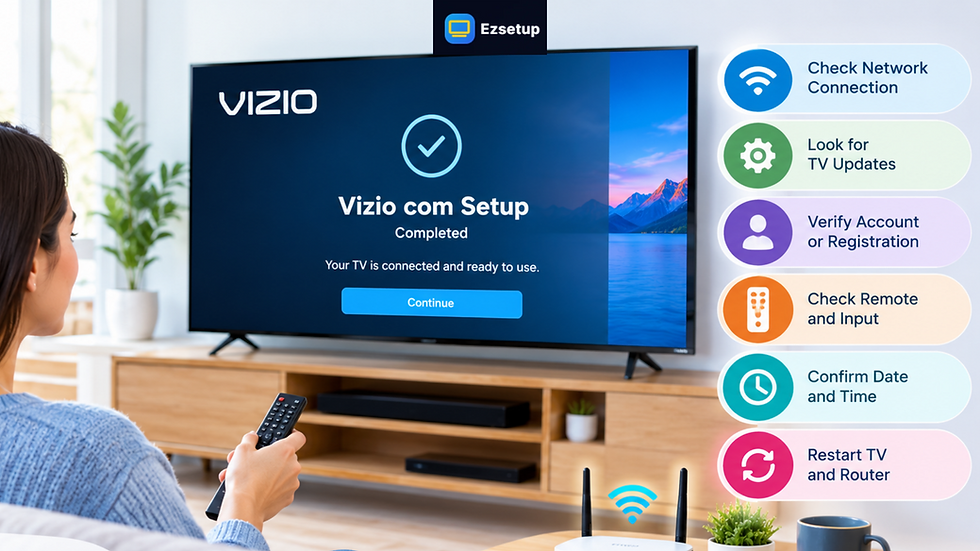
Fix 1: Check Date and Time Settings
This is the most common fix.
Steps:
Go to Settings on your TV
Open System or General Settings
Select Date & Time
Enable “Auto Set”
Restart your TV
After this, open YouTube again.
Fix 2: Restart the TV and the router
A simple restart can fix temporary glitches.
Steps:
Turn off the TV
Unplug the power for 1 minute
Restart the Wi-Fi router
Turn everything back on
Now check YouTube.
Fix 3: Complete TV Activation Properly
Sometimes users skip or face issues during setup.
If your TV shows activation screen or asks for login, complete Tv activate process properly.
What you may see:
TV activation code
QR code login
Sign in screen
Steps:
Open YouTube or TV setup screen
Note the Tv activation code
Enter it on your phone or browser
Sign in with your account
Wait for confirmation
If activation is not completed correctly, YouTube may show certificate errors.
Fix 4: Update TV Software
Old software is a major reason for YouTube issues.
Samsung Smart TV:
Settings → Support → Software Update
LG Smart TV:
Settings → Support → Update
Sony / TCL / Roku TV:
Settings → System → Update
Install updates and restart TV.
Fix 5: Update or Reinstall YouTube App
If YouTube is corrupted, reinstalling helps.
Steps:
Go to the Apps section
Find YouTube
Update or uninstall
Reinstall from the App Store
Then open again.
Fix 6: Reset Network Settings
If the internet is unstable, reset the network.
Steps:
Open Settings
Go to Network
Select Reset Network
Reconnect Wi-Fi
Try YouTube again.
Fix 7: Check Router and DNS
Sometimes the issue is not the TV, but the internet.
Try:
Restart router
Move the TV closer to Wi-Fi
Avoid VPN or proxy
Use Google DNS (8.8.8.8)
Fix 8: Factory Reset (Last Option)
If nothing works, reset the TV.
This will remove all apps and settings.
Steps:Settings → General → Reset → Confirm
After the reset, complete TV activation again.
Brand-Specific Notes
Samsung Smart TV
Most common issue: Smart Hub certificate mismatch or login error.
LG Smart TV
Often related to time settings or an outdated webOS version.
Sony / Android TV
Google account sync issues may trigger errors.
Roku TV
A channel (YouTube app) update usually fixes the problem.
TCL / Fire TV
Network or app cache issues are most common.
Why TV Activation Matters
Many users ignore setup steps, but TV activation is important because:
It connects your TV to Google/TV services
Syncs apps properly
Enables secure login
Prevents certificate mismatch issues
If activation is incomplete, apps like YouTube may not work correctly.
Helpful Tips to Avoid Future Errors
Keep TV software updated
Always use the correct date/time
Restart TV once a week
Keep a stable Wi-Fi connection
Don’t install unknown apps
Frequently Asked Questions
Why is YouTube not working on Smart TV?
Mostly due to internet issues, outdated app, or certificate error.
What is certificate info problem?
It means your TV cannot verify secure connection with YouTube servers.
Does TV activation affect YouTube?
Yes, incomplete Tv activate process can cause login and streaming issues.
Why does YouTube show certificate error on Samsung or LG TV?
Usually due to outdated software or wrong time settings.
Can factory reset fix YouTube issue?
Yes, but only if software or settings are corrupted.
Conclusion
YouTube certificate errors on Smart TVs are common but usually easy to fix. Most of the time, the issue comes from simple things like incorrect time settings, outdated software, or incomplete TV activation.
By following the steps above, you can fix YouTube not working on Smart TV issues without needing technical help. Start with basic fixes like restart and date/time correction, then move to advanced steps if needed.
If you still face problems during setup or Tv activate process, you can always refer to structured troubleshooting guides from EzSetup to better understand TV activation code and setup issues in a simple way.
The key is to follow each step carefully and not rush the setup process.
Disclaimer:
EzSetup is an independent help website. We provide TV setup, activation, and troubleshooting guides only and are not affiliated with, endorsed by, or sponsored by any brand.

Comments