



How Can You Finish Vizio TV Setup When the TV Keeps Returning to the Network Screen?
Setting up a new TV should be straightforward, but it can get frustrating when the Vizio TV Setup keeps returning to the network screen. You may select your Wi-Fi network, enter the password, and continue with setup, only to find yourself back at the same screen.
This usually means the TV is not completing one part of the network setup successfully. The problem can be related to the Wi-Fi connection, router, saved network information, software updates, or a temporary setup error.
The good news is that you can usually narrow down the cause by checking each part of the connection before restarting the entire setup process.
Check Whether Your Wi-Fi Connection Is Stable

Start with the network itself. If your Wi-Fi signal is weak or keeps disconnecting, the TV may be unable to complete the setup process.
Move the TV or router closer together if possible. If the router is in another room, walls and other electronic devices can sometimes reduce the signal strength.
You can also connect a phone, computer, or another device to the same Wi-Fi network. If that device also has trouble accessing the internet, the issue may be with the network rather than the TV.
Restart the Router Before Continuing
A temporary router problem can interfere with Vizio TV setup. Restarting the router gives the network connection a fresh start.
Turn off the router and wait for about 30 seconds before turning it back on. Allow the router a few minutes to reconnect to the internet. Once the connection is stable, return to the TV and try the setup process again.
Avoid repeatedly entering the Wi-Fi password while the router is still restarting.
Recheck the Wi-Fi Password
An incorrect password can prevent the TV from completing network setup. This can happen easily when a password contains capital letters, numbers, or special characters.
Select the correct wireless network and carefully enter the password again. If your router broadcasts several network names, make sure you are selecting your actual home network rather than a guest network or an old saved network.
If the password was recently changed, the TV may still have information from the previous connection.
Forget the Network and Reconnect
If the TV previously connected to the network but now keeps returning to the network screen, saved network information could be causing the problem.
Look through the available network settings for an option to remove, forget, or disconnect from the current Wi-Fi connection. After doing so, scan for available networks again.
Select your home network, enter the current password, and allow the TV to establish the connection before moving through the remaining setup steps.
Try Another Network Temporarily
Another useful test is to connect the TV to a different network. If available, you can use a mobile hotspot temporarily for troubleshooting.
This does not necessarily mean you should use the hotspot permanently. The goal is to determine whether the problem is specific to your home router.
If the TV moves past the network screen when connected to another network, your home Wi-Fi configuration may need further checking.
Check the Router’s Network Settings
Some router settings can affect how a newly connected TV communicates with the internet. If other devices work normally but the TV repeatedly returns to the network screen, review your router configuration.
Check whether the router has unusual access restrictions, device limits, parental controls, or security settings that could prevent a new device from reaching the internet.
If you recently changed router settings, consider whether the problem started afterward.
Give the TV Time to Complete Network Checks
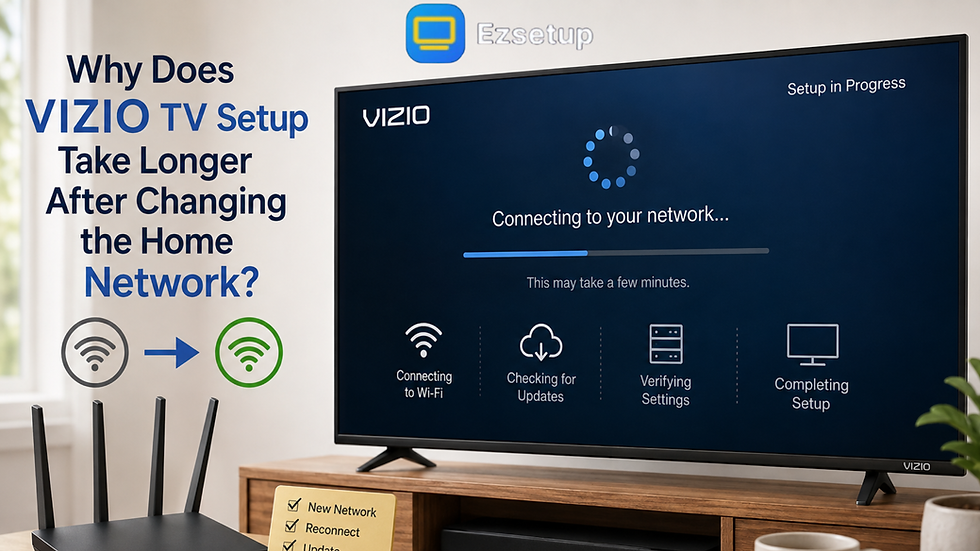
During initial setup, the TV may need to communicate with online services or check for software updates. Interrupting this process too quickly can send you back to an earlier setup screen.
After connecting to Wi-Fi, wait a few moments before pressing buttons repeatedly. If the TV displays a loading message, allow the process to finish.
A slow internet connection can make this stage take longer than expected.
Restart the TV and Begin the Network Step Again
If the network screen continues to appear, perform a basic TV restart. Turn the TV off, disconnect it from power, and wait briefly before reconnecting it.
After the TV starts again, return to the setup process. Connect to Wi-Fi carefully and check whether the TV can now continue to the next step.
Avoid changing several settings at once. Testing one change at a time makes it easier to identify what actually resolves the issue.
What If the TV Still Cannot Finish Setup?
If the TV continues returning to the network screen after testing another network, restarting the router, reconnecting Wi-Fi, and restarting the TV, the issue may require additional troubleshooting.
Pay attention to any error message, network status message, or update notification shown immediately before the TV returns to the network screen. That information can help identify which part of the setup process is failing.
Also check that the TV’s remote is responding correctly. If commands are delayed or ignored, the setup process may appear stuck even when the network connection is working.
Final Thoughts
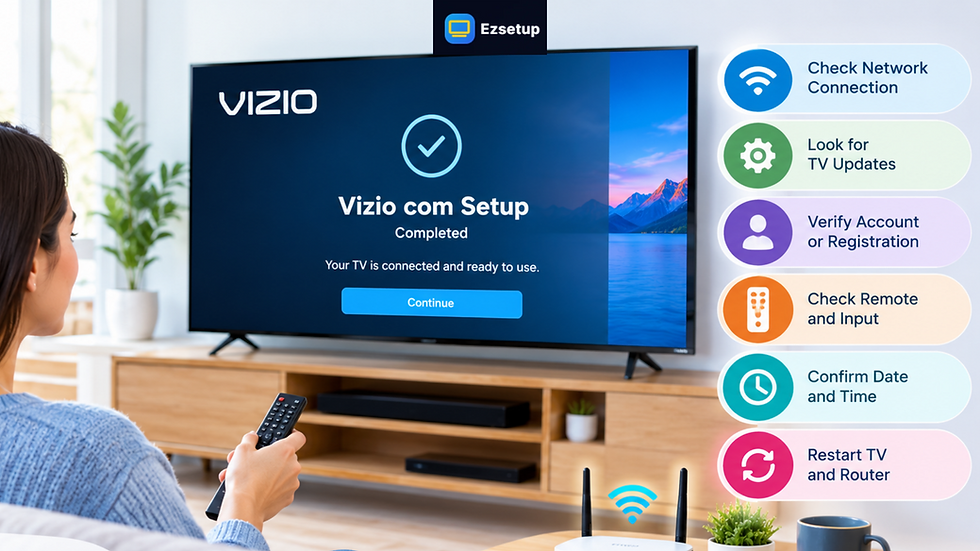
A Vizio TV that repeatedly returns to the network screen is usually having difficulty completing a network-related setup step. Start by checking your Wi-Fi connection and password, then restart the router and TV. Reconnecting to the network or testing another connection can help determine whether the issue is with the EzSetup or your home network.
If the problem continues, review router restrictions and consider resetting the TV only after simpler troubleshooting steps have been exhausted. Taking the process one step at a time can help you finish Vizio TV setup without unnecessarily repeating the entire installation.

Comments